How to Fish Error 0x11C7: Fix the Windows Launch Block Safely
Updated 2026-08-26
How to Fish blocked at launch by Windows with error 0x11C7? Work through reversible checks — Steam file verification, security updates, and the exact Smart App Control policy block — without weakening Windows protection.
What error 0x11C7 actually is
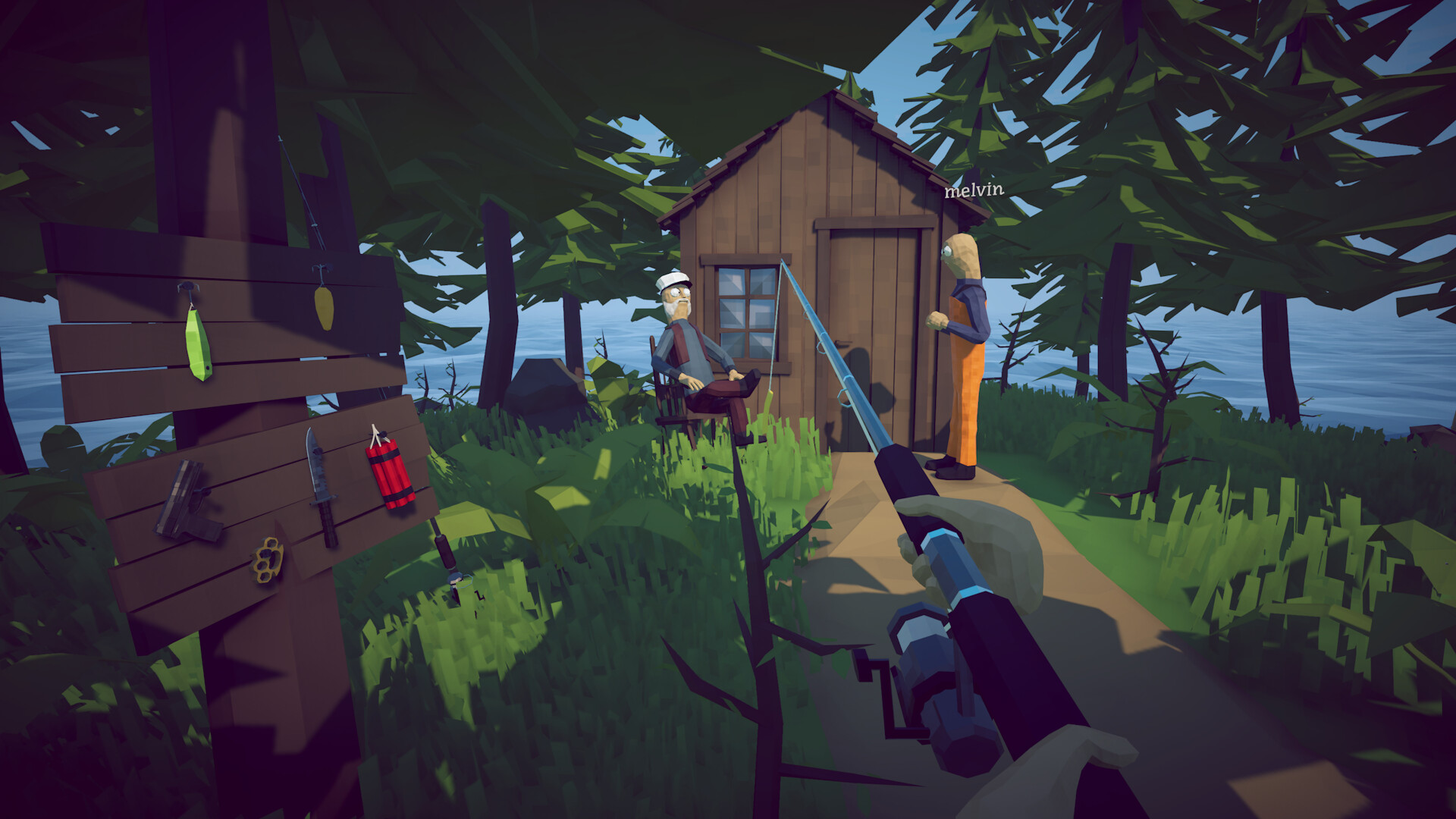
Launch-week Steam discussions include reports of How to Fish failing to start on Windows with error code 0x11C7, an application-policy block associated with Windows security features such as Smart App Control or SmartScreen-style reputation checks. This is Windows refusing to run the program, not a crash inside the game — which is why the usual in-game fixes (verify-and-relaunch loops alone, graphics settings, overlays) often change nothing. The goal of this page is to get the game running while keeping Windows protection intact. Note that this symptom is community-reported and Dazed Games had not published a dedicated 0x11C7 statement at the time of writing, so treat each step as a diagnostic, not a guaranteed fix.
Step 1 — Read the exact block message
Before changing anything, capture what Windows actually says. A Smart App Control block names itself in the dialog; a generic 'this app can't run' message points elsewhere. Take a screenshot and note whether the block appears on every launch or only after an update. This distinction matters later: a policy block that starts exactly after a game patch suggests the new build has not accumulated reputation yet, while a block on a build that ran yesterday suggests a local policy change.
Step 2 — Verify the game files through Steam
Confirm you are launching the genuine, current build. In Steam: Library → right-click How to Fish → Properties → Installed Files → Verify Integrity. A mismatched or partially updated executable is exactly the kind of file a reputation-based blocker distrusts. After verification completes, restart Steam fully (not just the game window) and try one launch. Do not download 'fixed' executables or DLLs from forum attachments or third-party sites — replacing signed game files with unknown binaries is both a security risk and a fast way to make a policy block permanent.
Step 3 — Update Windows and its security definitions
Install pending Windows updates, including security intelligence updates for Microsoft Defender. Reputation systems improve as they see more of a file in the wild; a launch-week executable from a small studio is precisely the case where current definitions matter. Reboot after updating, then test a launch. This is reversible, official, and resolves a meaningful share of launch-week policy blocks on new games.
Step 4 — Understand Smart App Control before touching it
If the dialog specifically names Smart App Control, know the trade-off: on current Windows versions, Smart App Control cannot be re-enabled after being turned off without a reset or clean reinstall of Windows. Turning it off will likely let the game run, but it permanently lowers a system-wide protection for the sake of one title. We do not recommend that as a first move. If the block persists after Steps 2–3, the safer path is to wait for the game build to gain reputation — typically days, not weeks, for a title with active players — or to ask the developer for a signed-build statement via the Steam community hub.
Step 5 — Report it with useful details
Post in the How to Fish Steam discussions with: the exact error text and code, your Windows version (run winver), whether Smart App Control is on, the game build number from the main menu or patch notes, and whether the block began after a specific patch. Launch-week developers triage by reproduction quality, and a policy block affecting many players is the kind of issue that gets an out-of-band build or signing fix. While you wait, do not run registry 'optimizers', compatibility shims from strangers, or disable core Windows security features beyond what you fully understand.
What not to do
Avoid the three failure patterns seen in launch-week threads: reinstalling repeatedly without updating Windows (the same blocked build comes back), disabling Smart App Control permanently in frustration (irreversible without an OS reset), and trusting unsigned 'launchers' or 'crack-adjacent fixes' shared as shortcuts. A legitimate workaround for a policy block is explainable and reversible; anything that asks you to weaken security broadly, permanently, is not a fix — it is the cost of playing one game early, paid across your whole system.
How to apply this guide safely
Begin with “What error 0x11C7 actually is” and compare it with the objective, inventory, and controls shown by your installed build. Do not change several variables at once. If the guide concerns progression, complete one dialogue or hand-in and confirm the objective changed before sailing away. If it concerns combat, test the control or equipment choice on an ordinary encounter before spending a boss trigger. If it concerns troubleshooting, preserve the save and start with reversible checks such as restarting the session and verifying files.
Keep a short run record with the game version, solo or co-op state, host identity, starting objective, relevant equipment, steps taken, and outcome. Physics, network state, and retail patches can make two attempts look different even when both players describe them honestly. A controlled record lets you identify which condition changed. It also gives the developer a useful reproduction if the result points to a defect rather than a missed quest step.
Evidence and version check
This article uses Steam Community — How to Fish discussions (0x11C7 launch-block reports), Steam Store — How to Fish. Official store text and developer announcements establish supported features and broad progression. Steam achievement wording establishes that a named action exists, but it does not prove an exact coordinate, probability, price, damage value, or hidden timer. Community discussions can reveal a repeated problem and possible workaround, but one reply is not treated as a universal mechanic. Where evidence stops, the guide uses cautious testing steps instead of inventing a precise answer.
Before relying on an older route, check the Steam news and discussion dates against the updated date at the top of this page. Prefer the current in-game objective when it conflicts with a video or forum post. Avoid unknown executables, replacement saves, cheats, or destructive file edits offered as shortcuts. A legitimate workaround should be explainable, reversible, and testable without surrendering account credentials or deleting the only known-good save.
Completion check
Finish with “What not to do,” then verify the result in the system that matters: quest log for progression, inventory for items, Steam for achievements, or a repeatable symptom check for a technical fix. Do not treat a visual animation alone as proof that the save registered the event. Wait for a normal transition and inspect the state before selling items, changing hosts, or starting another objective. If the result differs from this page, send the URL, build number, exact steps, and observed result through the contact page; that evidence is how we correct guides without turning uncertain reports into false facts.
Did this guide solve your problem?
Your answer tells us which fixes need clearer evidence or another troubleshooting path.
Sources & Evidence
Claims are backed by the following sources. Unknowns are marked explicitly.
- Steam Community — How to Fish discussions (0x11C7 launch-block reports)Community / Tier 2-3Checked 2026-08-26
- Steam Store — How to FishOfficial / Tier 1Checked 2026-08-26