
How to Fish Audio & Voice Chat Bug Checks
Updated 2026-09-06
Check Patch 1.0.12 voice-chat and radio fixes, then isolate inverted, slowed or duplicated audio without risky system changes.
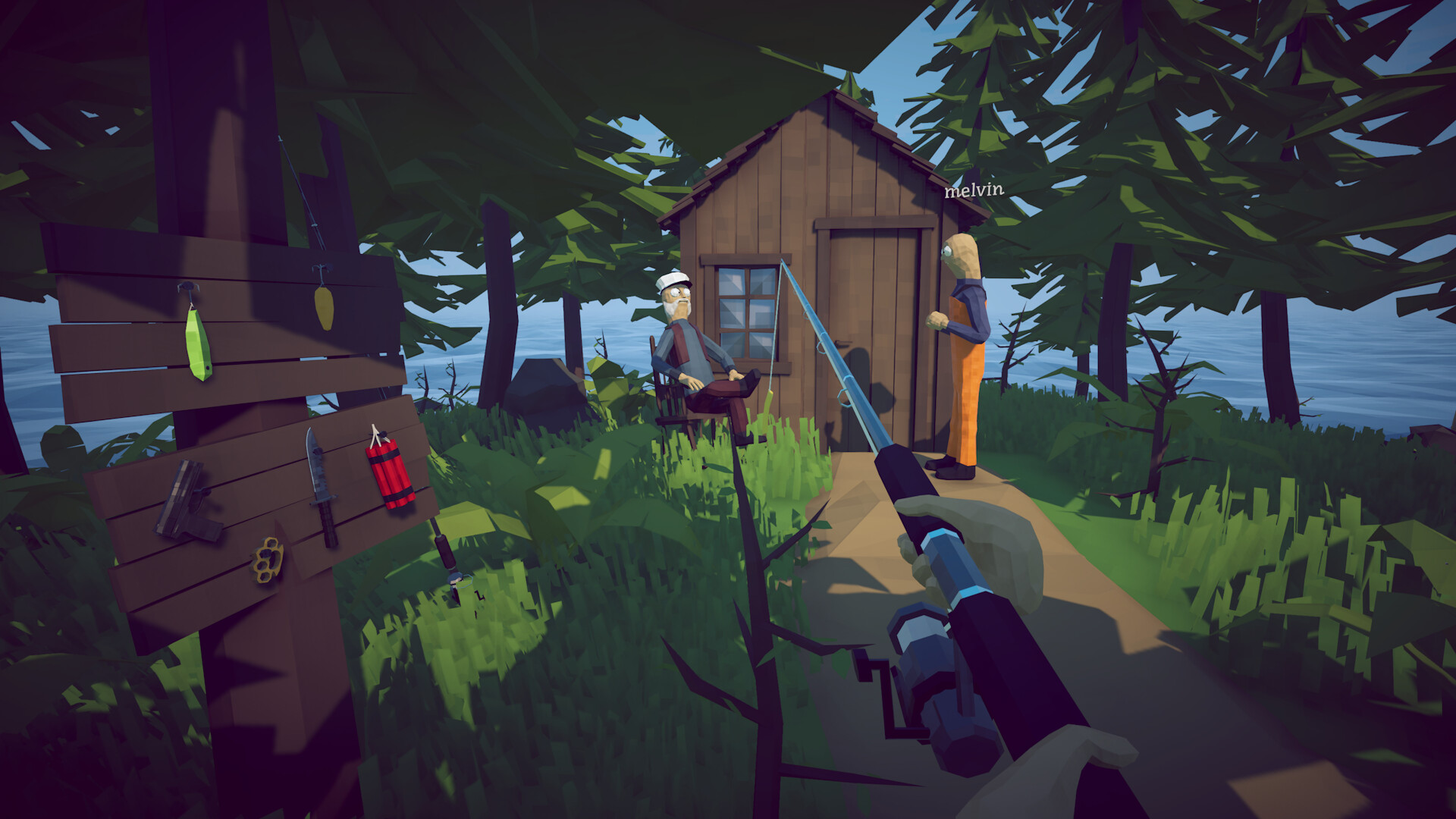
Patch 1.0.12 answer: voice chat and first-radio lag
Patch 1.0.12 updates MetaVoice to 4.3, which Dazed Games says will hopefully fix some voice-chat bugs. It also preloads music so buying the first radio should no longer cause a lag spike. The qualified voice-chat wording is not proof that inverted game audio, duplicated effects or every microphone problem is fixed. Confirm the current build and separate voice chat, music purchase and general output symptoms before troubleshooting.
Describe the sound failure
Record whether all audio slows, one effect repeats, voices duplicate, sound lags behind physics or the device becomes silent. Note when it begins: launch, joining co-op, a boss, changing output or prolonged play. Steam's current discussion index contains audio slowdown reports, but an index title does not prove a single cause. A precise symptom is the foundation for every safe comparison.
Run a simple device baseline
Pause at a stable location, select the intended operating-system output and disable spatial or enhancement effects for one test. Disconnect unused Bluetooth or virtual devices. Restart the game after the output change. Do not install codec packs or driver tools from advertisements. If one standard wired or built-in output works, preserve that result and restore enhancements individually.
Compare overlays and capture tools
Close recording, voice-processing and overlay applications one at a time, then reproduce the same action. Keep Steam itself available unless the test specifically requires an official overlay change. In co-op, separate game audio duplication from voice chat echo by muting one source briefly. Record which process changes the symptom rather than disabling every service at once.
Check frame and session correlation
If sound slows when the game stutters, collect frame and hardware information using a trusted monitor rather than assuming audio is the root cause. Test a conservative supported display configuration and single-player. If only clients hear duplication, record host/client role and party size. Do not publish a guaranteed FPS or sample-rate fix without reproducible evidence across builds.
Use supported updates
Install the current game patch, stable operating-system updates and the hardware vendor's supported audio driver. Restart after changes. Avoid random DLL replacement, registry cleaners or disabling security. If a driver rollback is required, use the vendor or operating-system mechanism and create a restore point where applicable. Change one component and document the outcome.
Report and work around responsibly
Include build, output device, sample configuration if known, overlays, session role, duration before failure and a minimal reproduction. A temporary restart or device switch may restore play, but label it as a workaround. Check official announcements for a confirmed fix and remove outdated advice when the build changes.
When the symptom only appears in long sessions
Audio faults that begin after extended play point toward resource or session state rather than a broken device. Note the minutes before onset, whether a boss or island transition preceded it, and whether a clean menu save and reload clears it. A time-to-failure figure in your report helps developers reproduce the condition far faster than a generic description.
How to apply this guide safely
Begin with “Patch 1.0.12 answer: voice chat and first-radio lag” and compare it with the objective, inventory, and controls shown by your installed build. Do not change several variables at once. If the guide concerns progression, complete one dialogue or hand-in and confirm the objective changed before sailing away. If it concerns combat, test the control or equipment choice on an ordinary encounter before spending a boss trigger. If it concerns troubleshooting, preserve the save and start with reversible checks such as restarting the session and verifying files.
Keep a short run record with the game version, solo or co-op state, host identity, starting objective, relevant equipment, steps taken, and outcome. Physics, network state, and retail patches can make two attempts look different even when both players describe them honestly. A controlled record lets you identify which condition changed. It also gives the developer a useful reproduction if the result points to a defect rather than a missed quest step.
Evidence and version check
This article uses Dazed Games — Steam Cloud support and Patch 1.0.12, Steam Community Hub — official announcements, Steam Discussions — current issue reports. Official store text and developer announcements establish supported features and broad progression. Steam achievement wording establishes that a named action exists, but it does not prove an exact coordinate, probability, price, damage value, or hidden timer. Community discussions can reveal a repeated problem and possible workaround, but one reply is not treated as a universal mechanic. Where evidence stops, the guide uses cautious testing steps instead of inventing a precise answer.
Before relying on an older route, check the Steam news and discussion dates against the updated date at the top of this page. Prefer the current in-game objective when it conflicts with a video or forum post. Avoid unknown executables, replacement saves, cheats, or destructive file edits offered as shortcuts. A legitimate workaround should be explainable, reversible, and testable without surrendering account credentials or deleting the only known-good save.
Completion check
Finish with “When the symptom only appears in long sessions,” then verify the result in the system that matters: quest log for progression, inventory for items, Steam for achievements, or a repeatable symptom check for a technical fix. Do not treat a visual animation alone as proof that the save registered the event. Wait for a normal transition and inspect the state before selling items, changing hosts, or starting another objective. If the result differs from this page, send the URL, build number, exact steps, and observed result through the contact page; that evidence is how we correct guides without turning uncertain reports into false facts.
Did this guide solve your problem?
Your answer tells us which fixes need clearer evidence or another troubleshooting path.
Sources & Evidence
Claims are backed by the following sources. Unknowns are marked explicitly.
- Dazed Games — Steam Cloud support and Patch 1.0.12Official / Tier 1Checked 2026-09-06
- Steam Community Hub — official announcementsOfficial / Tier 1Checked 2026-08-25
- Steam Discussions — current issue reportsCommunity / Tier 2-3Checked 2026-09-06